Examples
Learn from real-world examples that demonstrate JsonCut's image generation capabilities. Each example includes the complete JSON configuration and explains the design decisions.
Social Media Graphics
Social Media Post
Create engaging square posts for Social Media:

{
  "type": "image",
  "config": {
    "width": 1080,
    "height": 1080,
    "backgroundColor": "#ffffff",
    "layers": [
      {
        "type": "gradient",
        "x": 0, "y": 0, "width": 1080, "height": 1080,
        "gradient": {
          "type": "linear",
          "colors": ["#667eea", "#764ba2"],
          "direction": "diagonal"
        }
      },
      {
        "type": "rectangle",
        "x": 90, "y": 200, "width": 900, "height": 720,
        "fill": "#ffffff",
        "opacity": 0.95,
        "borderRadius": 25
      },
      {
        "type": "image",
        "path": "/image/2025-09-10/cmejszvz00000t5afm8qcr6bq/bf1cdc0f-0ce3-4b7a-83cd-b5d46a879fbe.png",
        "x": 140, "y": 250, "width": 800, "height": 400,
        "fit": "cover",
        "borderRadius": 18
      },
      {
        "type": "text",
        "text": "New Product Launch",
        "x": 540, "y": 720,
        "fontSize": 48, "color": "#333333",
        "align": "center", "fontFamily": "Arial"
      },
      {
        "type": "text",
        "text": "Available now in our store",
        "x": 540, "y": 780,
        "fontSize": 24, "color": "#666666",
        "align": "center"
      },
      {
        "type": "rectangle",
        "x": 390, "y": 820, "width": 300, "height": 60,
        "fill": "#007acc",
        "borderRadius": 50
      },
      {
        "type": "text",
        "text": "Shop Now",
        "x": 540, "y": 835,
        "fontSize": 24, "color": "#ffffff",
        "align": "center"
      }
    ]
  }
}
Watermarking
Image Watermark
Add professional watermarks to protect your images:
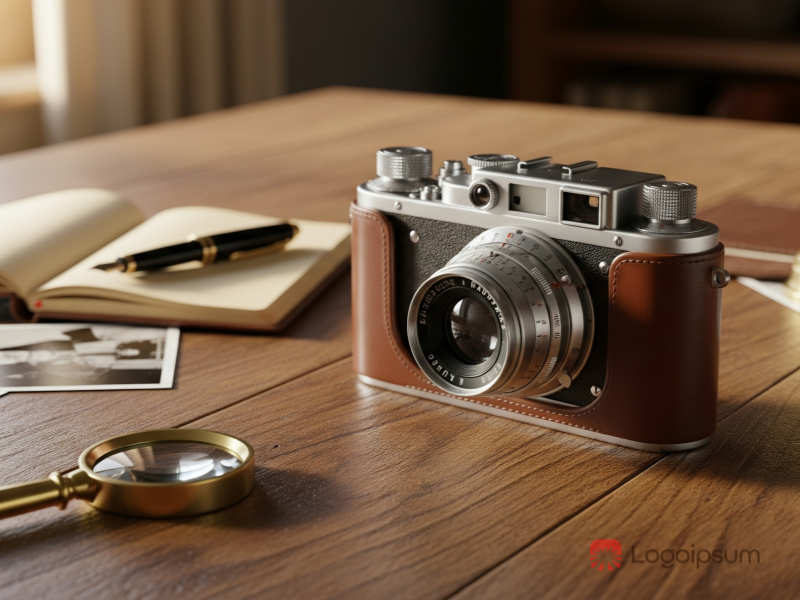
{
  "type": "image",
  "config": {
    "width": 800,
    "height": 600,
    "layers": [
      {
        "type": "image",
        "path": "/image/2000-09-10/cmejszvz/d75f579e-9d8f-41b2-a0fa-49c452627fd9.png",
        "x": 0, "y": 0, "width": 800, "height": 600,
        "fit": "cover"
      },
      {
        "type": "image",
        "path": "/image/2000-09-10/cmejszv/292547ef-5c9c-4da0-835c-6eee2333768d.png",
        "width": 170,
        "height": 90,
        "position": { "x": 0.95, "y": 1, "originX": "right", "originY": "bottom" },
        "fit": "contain",
        "opacity": 0.5
      }
    ]
  }
}
Educational Content
Certificate Template
Create professional certificates and awards:

{
  "type": "image",
  "config": {
    "width": 1200,
    "height": 800,
    "backgroundColor": "#f8f9fa",
    "layers": [
      {
        "type": "rectangle",
        "x": 50, "y": 50, "width": 1100, "height": 700,
        "fill": "#ffffff",
        "stroke": "#007acc", "strokeWidth": 8
      },
      {
        "type": "text",
        "text": "CERTIFICATE OF COMPLETION",
        "x": 600, "y": 150,
        "fontSize": 36, "color": "#007acc",
        "align": "center", "fontFamily": "Arial"
      },
      {
        "type": "text",
        "text": "This certifies that",
        "x": 600, "y": 250,
        "fontSize": 24, "color": "#333333",
        "align": "center"
      },
      {
        "type": "text",
        "text": "John Doe",
        "x": 600, "y": 320,
        "fontSize": 48, "color": "#333333",
        "align": "center", "fontFamily": "Arial"
      },
      {
        "type": "text",
        "text": "has successfully completed the course",
        "x": 600, "y": 400,
        "fontSize": 24, "color": "#333333",
        "align": "center"
      },
      {
        "type": "text",
        "text": "Advanced Web Development",
        "x": 600, "y": 470,
        "fontSize": 32, "color": "#007acc",
        "align": "center", "fontFamily": "Arial"
      },
      {
        "type": "text",
        "text": "Date: December 15, 2024",
        "x": 300, "y": 600,
        "fontSize": 18, "color": "#666666"
      },
      {
        "type": "text",
        "text": "Instructor: Jane Smith",
        "x": 900, "y": 600,
        "fontSize": 18, "color": "#666666",
        "align": "right"
      }
    ]
  }
}
Web Graphics
Blog Header
Design engaging blog post headers:

{
  "type": "image",
  "config": {
    "width": 1200,
    "height": 600,
    "layers": [
      {
        "type": "image",
        "path": "/image/2000-09-10/cmejszv/206afa45-54ef-4c09-b2e9-192136e9eb0e.png",
        "x": 0, "y": 0, "width": 1200, "height": 600,
        "fit": "cover", "opacity": 0.8
      },
      {
        "type": "rectangle",
        "x": 0, "y": 0, "width": 1200, "height": 600,
        "fill": "#000000", "opacity": 0.5
      },
      {
        "type": "rectangle",
        "x": 100, "y": 150, "width": 1000, "height": 300,
        "fill": "#ffffff", "opacity": 0.8,
        "borderRadius": 30
      },
      {
        "type": "text",
        "text": "10 Tips for Better Design",
        "x": 600, "y": 250,
        "fontSize": 56, "color": "#333333",
        "align": "center", "fontFamily": "Arial"
      },
      {
        "type": "text",
        "text": "Master the fundamentals of visual design",
        "x": 600, "y": 320,
        "fontSize": 24, "color": "#666666",
        "align": "center"
      },
      {
        "type": "text",
        "text": "5 min read • Design Tips",
        "x": 600, "y": 380,
        "fontSize": 18, "color": "#999999",
        "align": "center"
      }
    ]
  }
}
Marketing Graphics
Sale Banner
Create compelling promotional banners:

{
  "type": "image",
  "config": {
    "width": 1200,
    "height": 400,
    "layers": [
      {
        "type": "gradient",
        "x": 0, "y": 0, "width": 1200, "height": 400,
        "gradient": {
          "type": "linear",
          "colors": ["#ff6b6b", "#ff8e53"],
          "direction": "horizontal"
        }
      },
      {
        "type": "text",
        "text": "BLACK FRIDAY",
        "x": 300, "y": 120,
        "fontSize": 64, "color": "#ffffff",
        "align": "center", "rotation": -5
      },
      {
        "type": "text",
        "text": "SALE",
        "x": 300, "y": 200,
        "fontSize": 96, "color": "#ffffff",
        "align": "center", "rotation": -5
      },
      {
        "type": "circle",
        "x": 750, "y": 105, "width": 200, "height": 200,
        "fill": "#ffffff"
      },
      {
        "type": "text",
        "text": "UP TO",
        "x": 850, "y": 160,
        "fontSize": 24, "color": "#ff6b6b",
        "align": "center"
      },
      {
        "type": "text",
        "text": "70%",
        "x": 850, "y": 190,
        "fontSize": 48, "color": "#ff6b6b",
        "align": "center", "fontFamily": "Arial"
      },
      {
        "type": "text",
        "text": "OFF",
        "x": 850, "y": 240,
        "fontSize": 24, "color": "#ff6b6b",
        "align": "center"
      }
    ]
  }
}
Inspirational Graphics
Quote Design
Create motivational quote graphics:
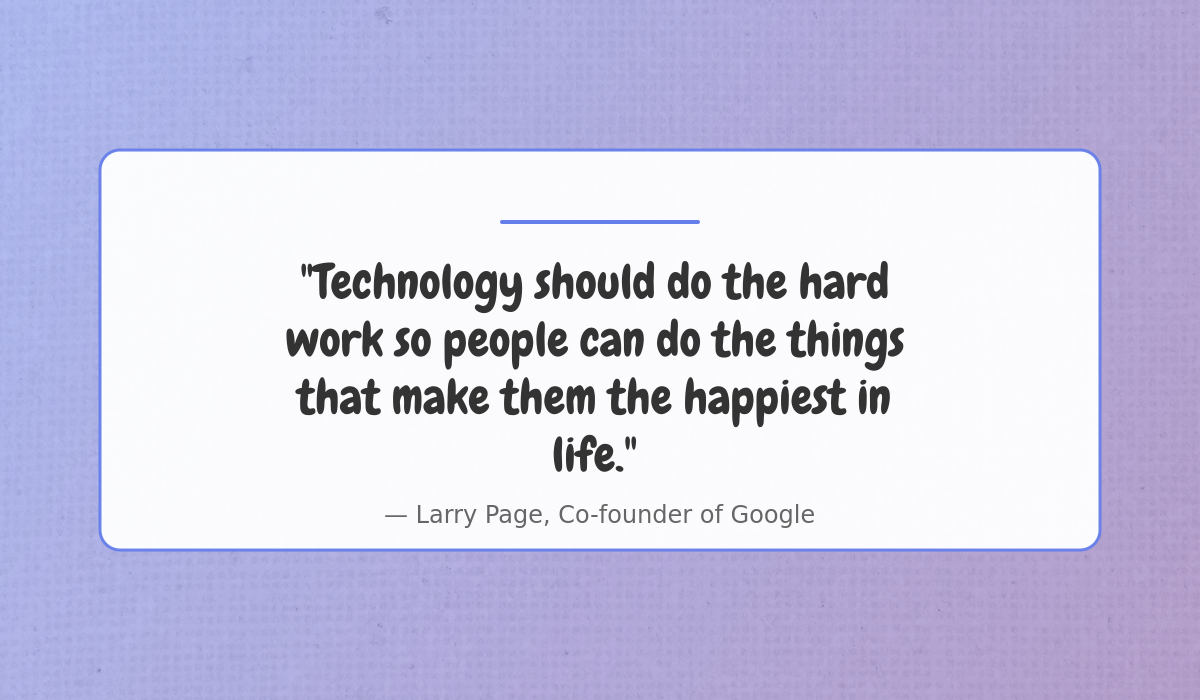
{
  "type": "image",
  "config": {
    "width": 1200,
    "height": 700,
    "layers": [
      {
        "type": "image",
        "path": "/image/2025-09-11/cmejszvz00000t5afm8qcr6bq/57203cec-9ce9-4319-a8d1-44cac3ad5ab0.jpg",
        "x": 0, "y": 0, "width": 1200, "height": 700,
        "fit": "cover", "opacity": 0.7
      },
      {
        "type": "gradient",
        "x": 0, "y": 0, "width": 1200, "height": 700,
        "gradient": {
          "type": "linear",
          "colors": ["#667eea", "#764ba2"],
          "direction": "diagonal"
        },
        "opacity": 0.5
      },
      {
        "type": "rectangle",
        "x": 100, "y": 150, "width": 1000, "height": 400,
        "fill": "#ffffff", "opacity": 0.95,
        "borderRadius": 20,
        "stroke": "#667eea",
        "strokeWidth": 3
      },
      {
        "type": "text",
        "text": "\"Technology should do the hard work so people can do the things that make them the happiest in life.\"",
        "x": 600, "y": 250,
        "width": 700,
        "wrap": true,
        "fontSize": 48, "color": "#333333",
        "align": "center", "fontPath": "/font/2025-09-11/cmejszvz00000t5afm8qcr6bq/be79c510-4db1-4b77-91a4-f3327588f6f7.ttf"
      },
      {
        "type": "text",
        "text": "— Larry Page, Co-founder of Google",
        "x": 600, "y": 500,
        "fontSize": 24, "color": "#666666",
        "align": "center"
      },
      {
        "type": "rectangle",
        "x": 500, "y": 220, "width": 200, "height": 4,
        "fill": "#667eea", "borderRadius": 2
      }
    ]
  }
}
Design Tips
Using Defaults Effectively
Streamline your configurations with smart defaults:
{
  "type": "image",
  "config": {
    "width": 800,
    "height": 600,
    "defaults": {
      "layer": {
        "opacity": 0.9
      },
      "layerType": {
        "text": {
          "fontFamily": "Arial",
          "color": "#333333"
        },
        "rectangle": {
          "fill": "#007acc",
          "stroke": "#004d7a",
          "strokeWidth": 2
        }
      }
    },
    "layers": [
      {
        "type": "text",
        "text": "Inherits defaults",
        "x": 400, "y": 200,
        "fontSize": 32, "align": "center"
      },
      {
        "type": "rectangle",
        "x": 300, "y": 300, "width": 200, "height": 100
      }
    ]
  }
}
Next Steps
Now that you've seen these diverse examples, try creating your own designs:
- Start simple - Begin with basic layouts and add complexity gradually
- Use defaults - Leverage the defaults system for consistent styling
- Plan your layers - Sketch your design before writing JSON
- Test different sizes - Ensure your designs work at various dimensions
- Iterate quickly - Use the validation endpoint to test configurations
Ready to build more complex designs? Explore:
- Layer Types - Master all available layer types
- Positioning System - Create precise layouts
- Visual Effects - Add stunning visual effects
- Text Rendering - Perfect your typography